How to import and use mobile Lightroom presets with the app screenshot tutorial

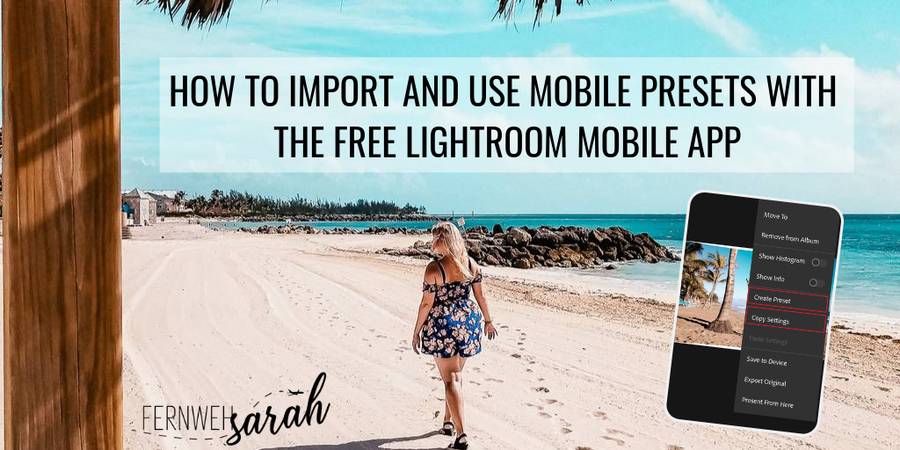
Hey there! Since some of of were asking me how to download and import my mobile Lightroom presets into the free Lightroom mobile app, I wrote a short tutorial for you! In this tutorial, I will show you how to buy, download, import and use my Lightroom presets for mobile!

I hope this will make everything super easy for you when working with my presets!

If you want to know more about Lightroom presets, check these blog post too:

Read: Lightroom Presets – what they are and what they are NOT

Read: Why you need a preset pack to easily edit the perfect Instagram picture

Check out my preset packs here:

Pin this for later!

How to import and use mobile Lightroom presets with the app screenshot tutorial

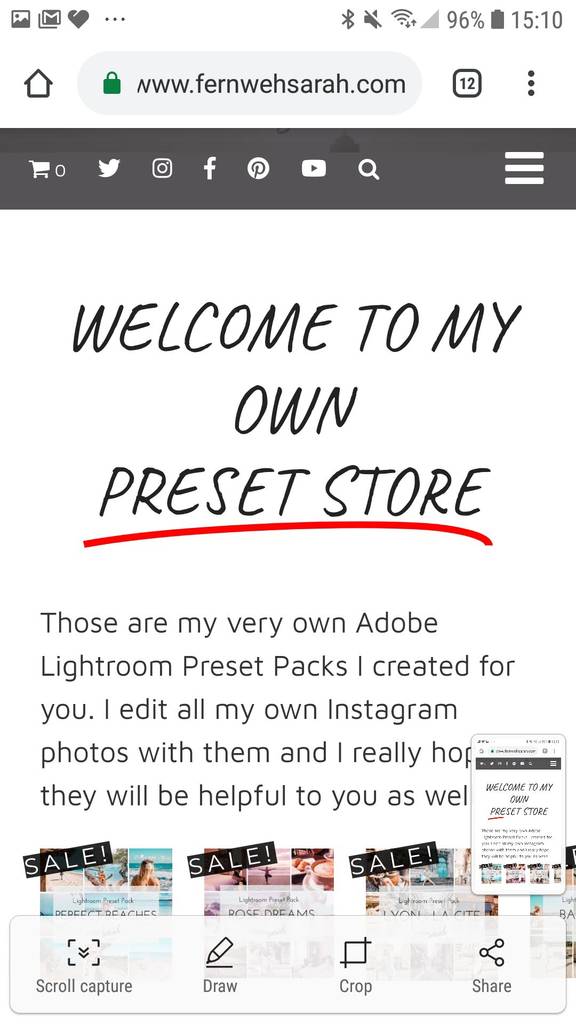
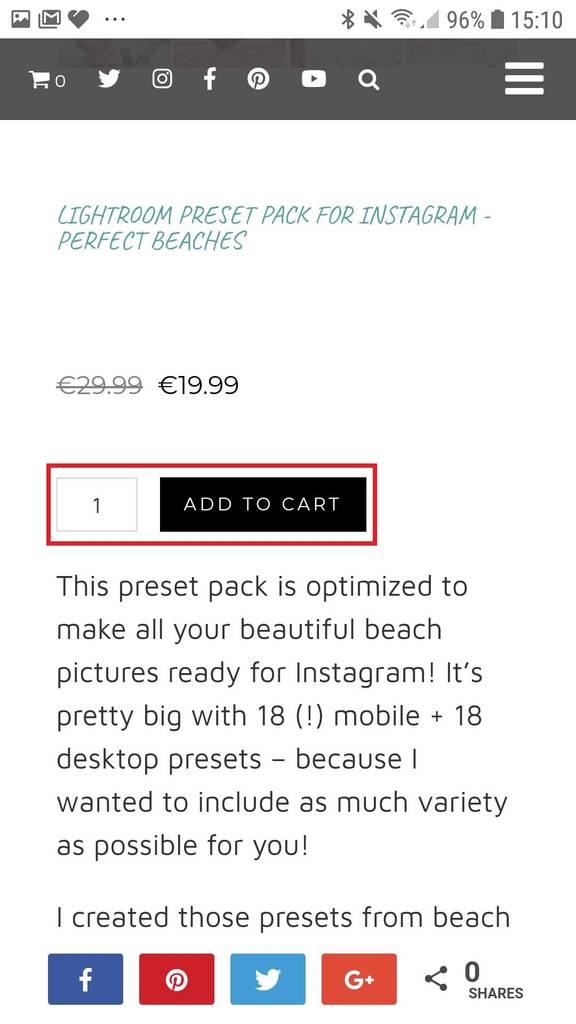
How to Buy and Download my Presets

First of all, let me quickly show you how you can buy and download my presets in my own preset store here on my website. Don’t worry, it’s super easy!

Skip this step if you already downloaded some of my presets!

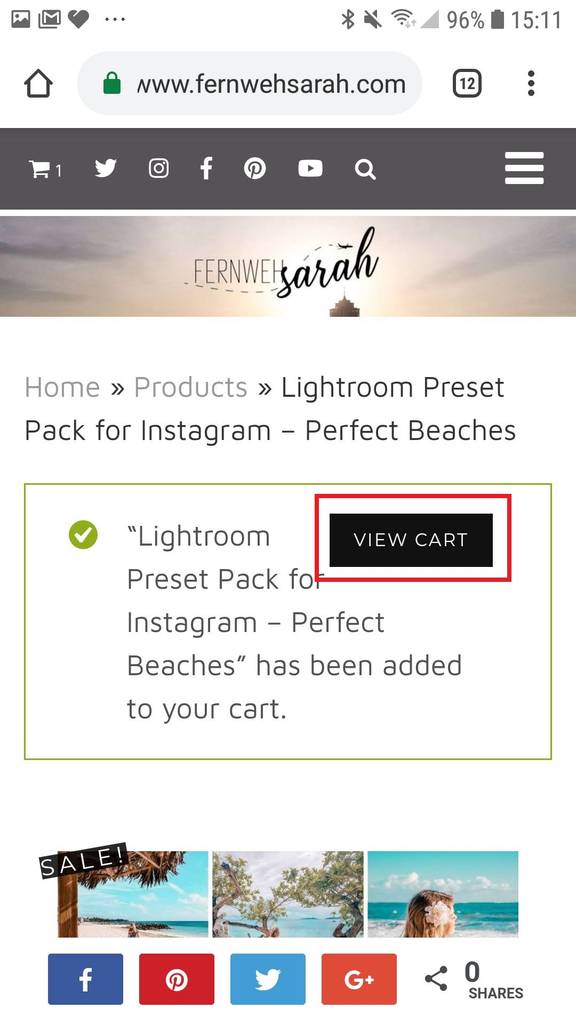
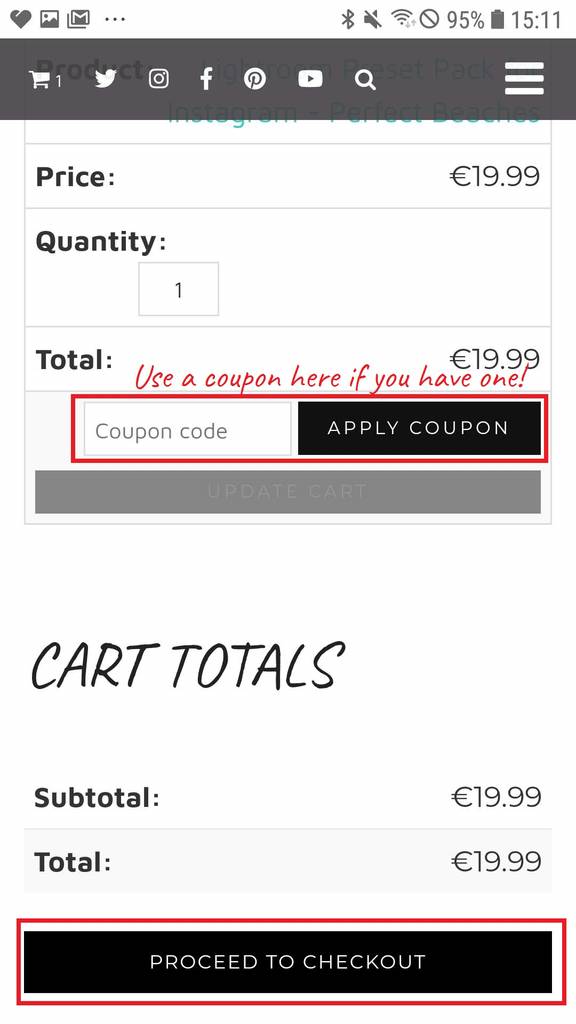
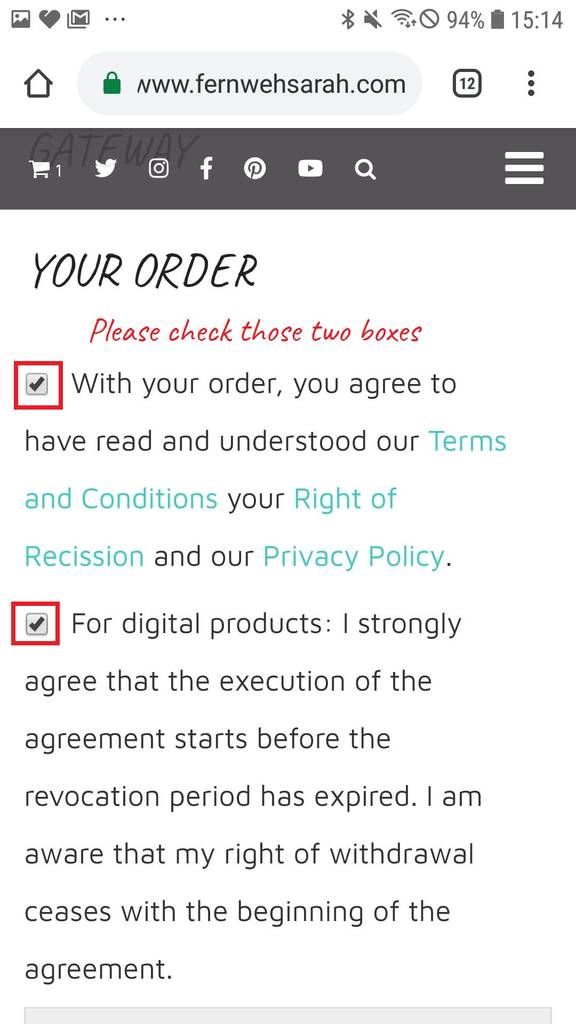
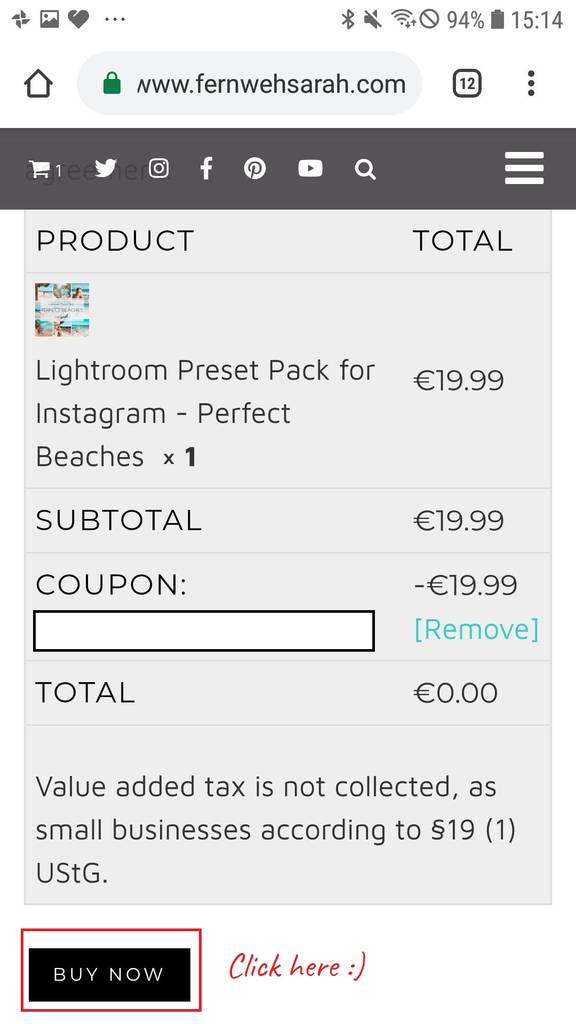
After adding all presets you want to buy into your chart, click “View Chart” and enter your payment (Paypal) and personal information. Ad a coupon if you have one!

You need to check the two checkboxes at the end (they are required by German law).

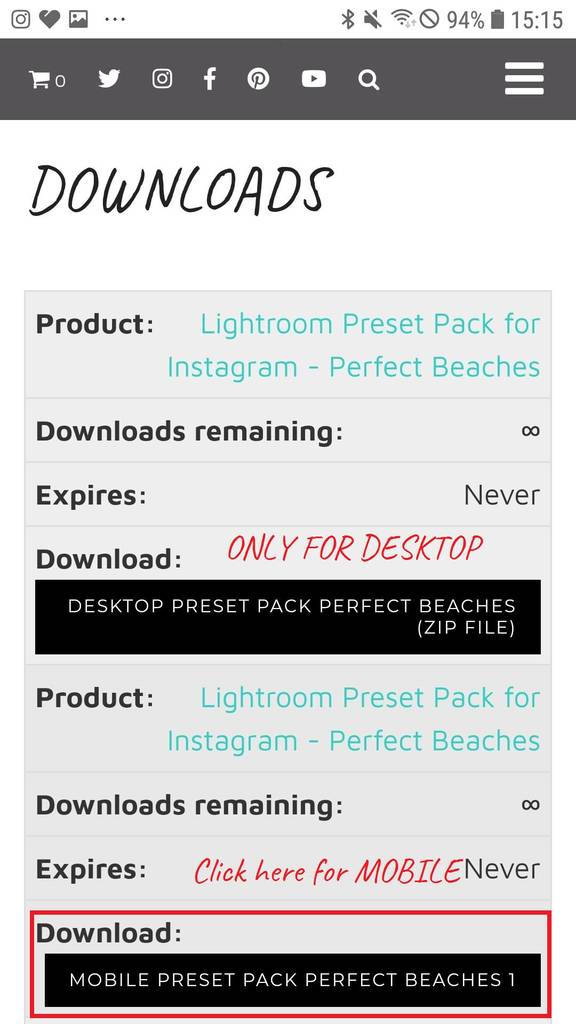
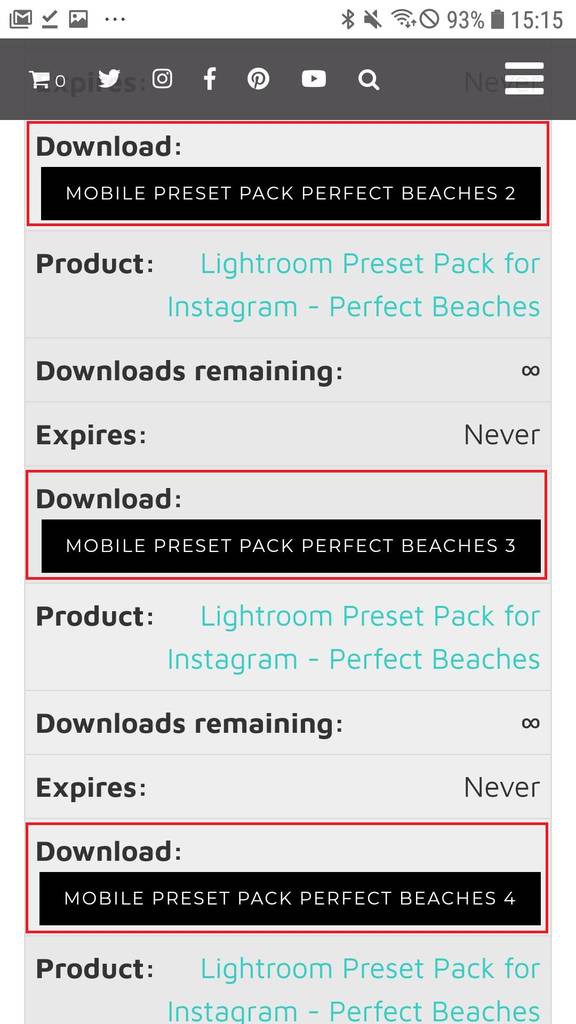
After buying, you will directly see a download page where you can download your mobile Lightroom presets one by one by clicking the black buttons. The first button is for DESKTOP presets only – ignore it on mobile!

I added each preset separately so that you don’t have to first download them on a computer and send them to your phone. More clicks, but easier for you! :-* 

Some girls do pack them in a ZIP-folder – unfortunately mobile phones can’t handle them. If you ever come across a mobile preset pack in a ZIP-folder (on another website 🙂 ) – download it to your computer, unzip it and transfer the individual files to your phone via Dropbox. But as said, you don’t need to do this with my presets! 🙂

If you accidentally closed the page: Don’t worry! You will also get all the preset links sent by email and you can still download them!

Download the Free Mobile Lightroom App

How to import and use mobile Lightroom presets with the app screenshot tutorial

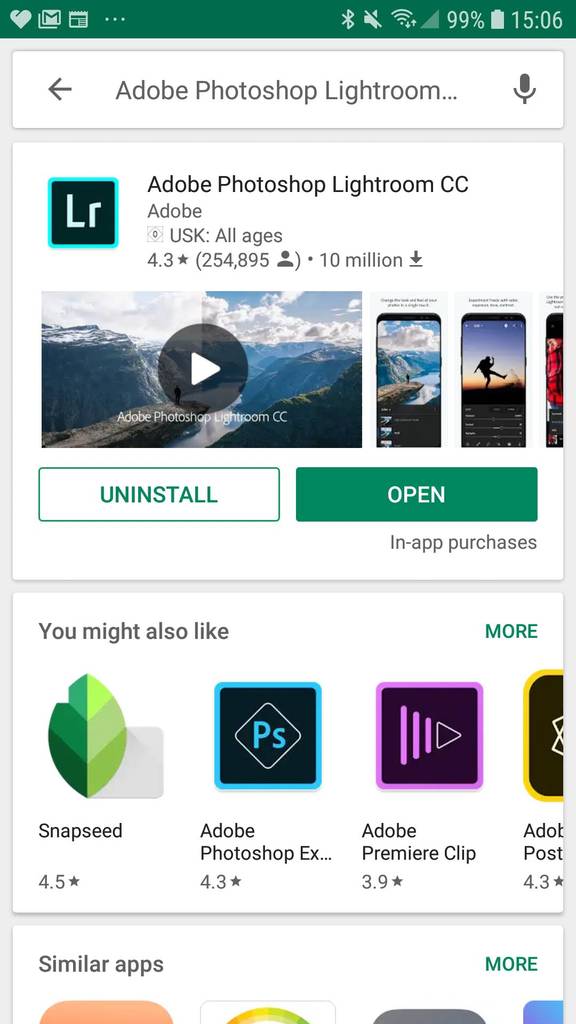
While Lightroom for desktop costs 15$ per month, the Lightroom app is thankfully completely for free! So, download the app, install it and sign up for an Adobe Account.

Download Links:

Import my Presets into ADobe Lightroom App

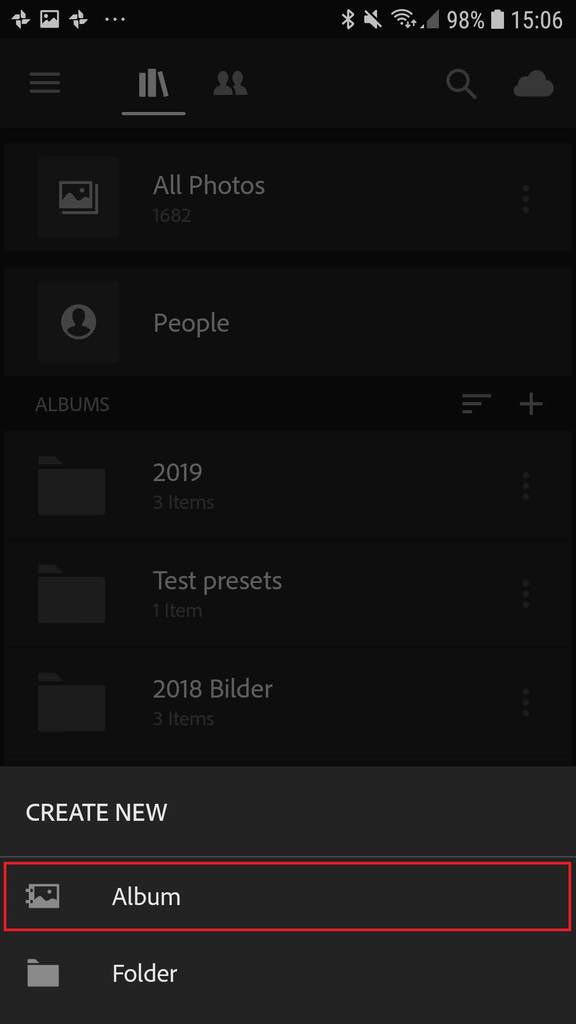
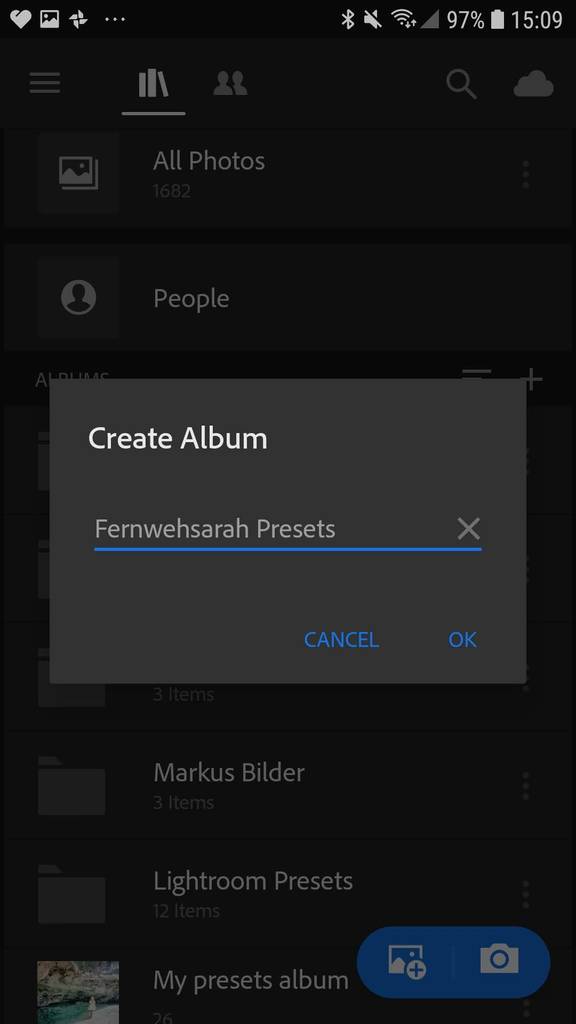
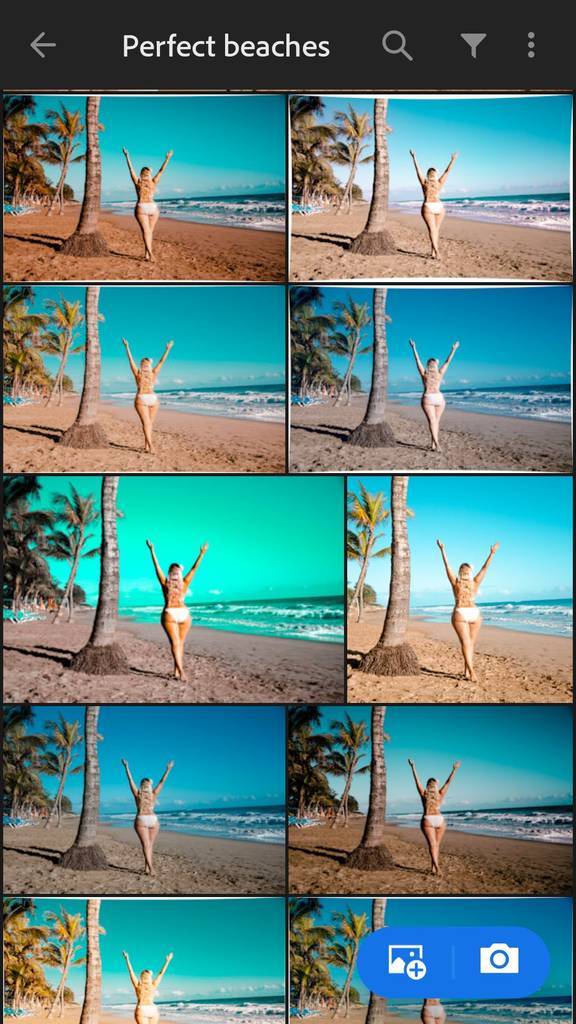
In order to always easily find my presets, create an album in the Lightroom app and name it something like “Fernwehsarah Presets” (or the name of your purchased preset pack).

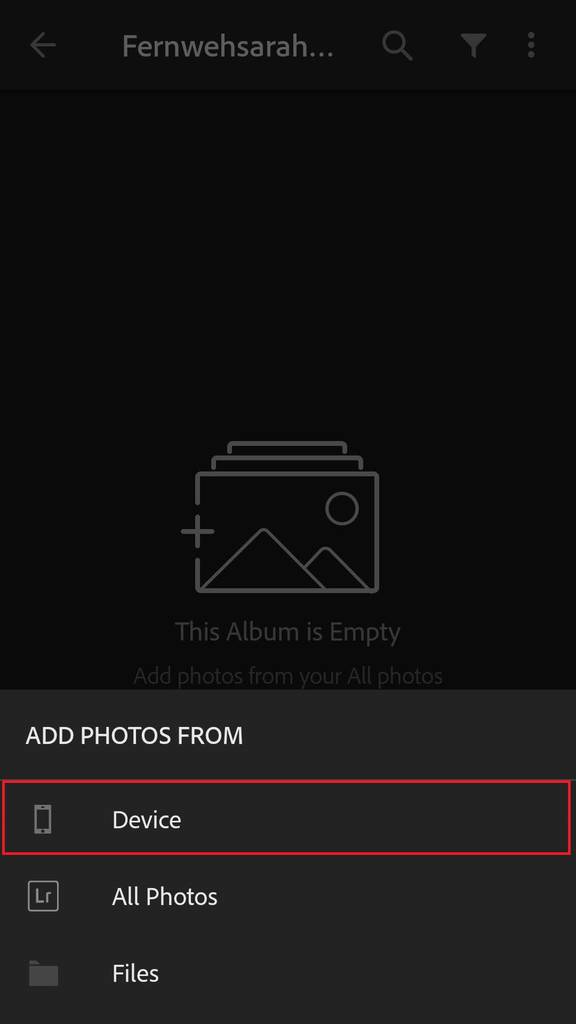
Next, click on the camera roll icon (down right corner) and click import. Select “Add photos from Device”. Select all the presets you just downloaded and click “Add”. (Tip: if you are having trouble finding then, sort your phones folder by “Time”)

How to use Presets on your Phone (Classic way)

Until half a year ago, you only had the option to “Copy and paste” the settings from these mobile Lightroom presets. This is also still what you will find in most tutorials online. 

There is another way now too that will work if you edit RAW files with your phone that I will show you later too!

In order to use the mobile presets the classic way, do this:

  1. Select your favorite photo
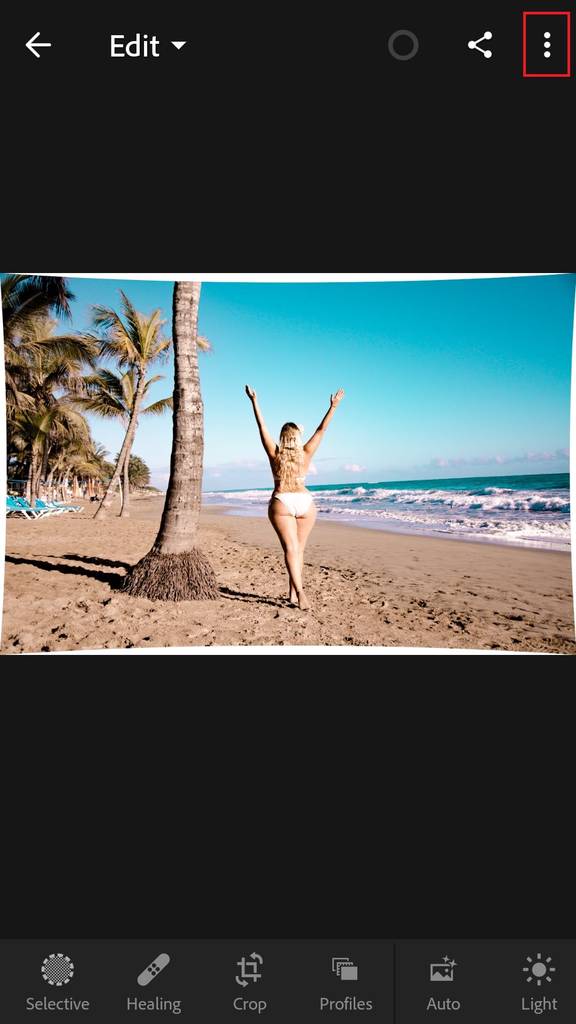
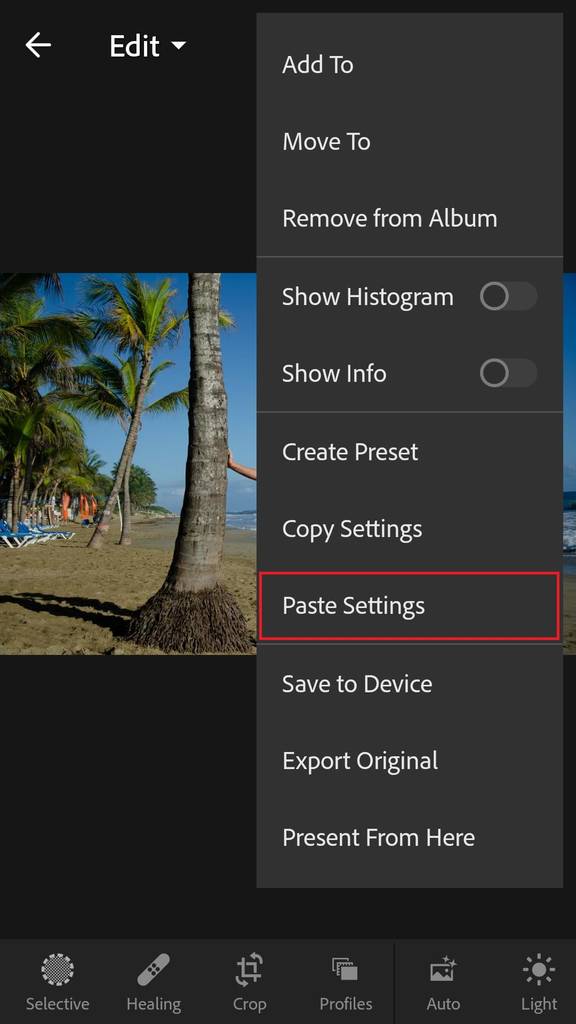
  2. Click on the three small dots in the upper right corner
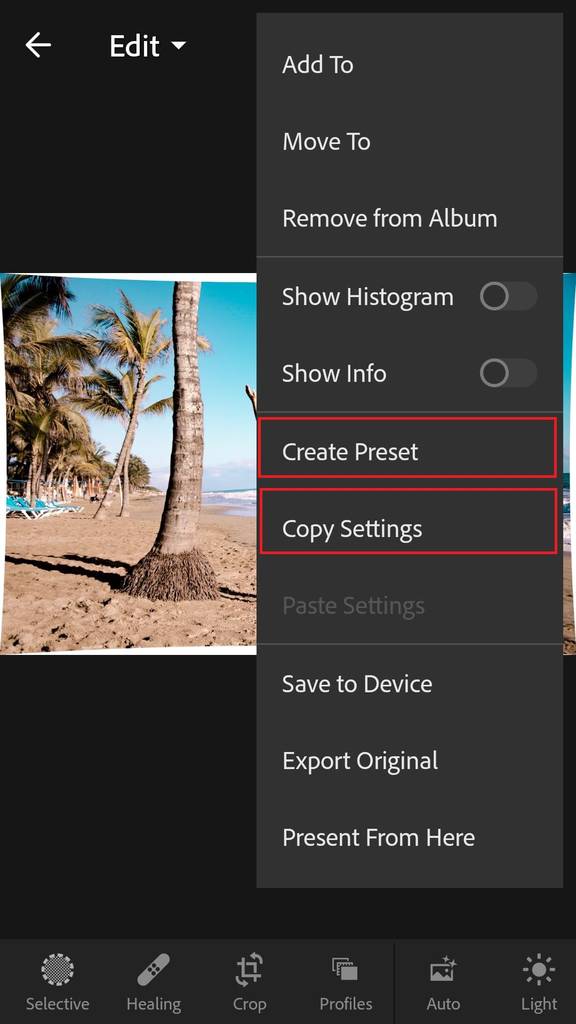
  3. Select “Copy Settings”
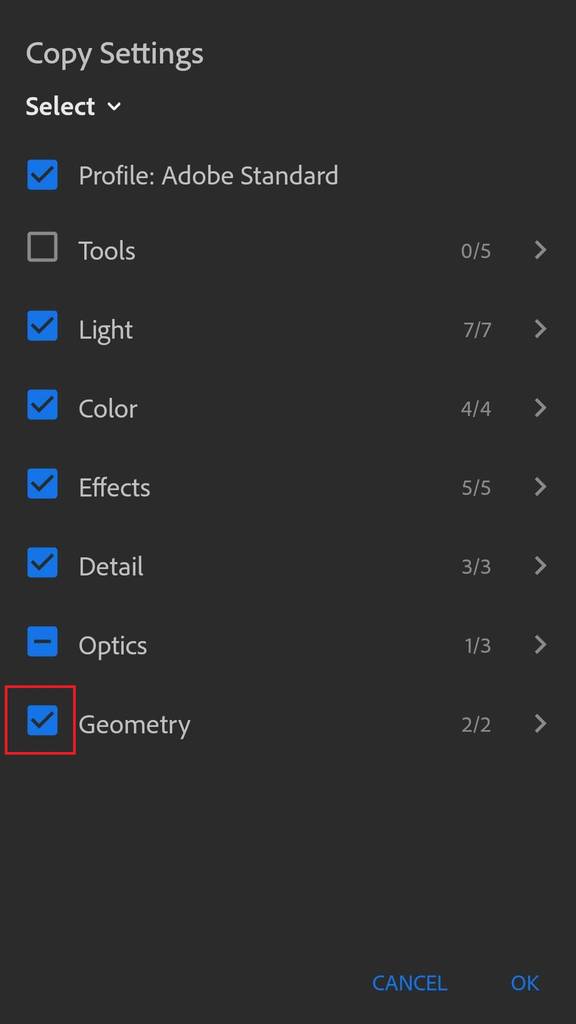
  4. Choose if you want to copy Geometry too (I would say, do it!)
  5. Open the picture you want to edit
  6. Click “Paste Settings”

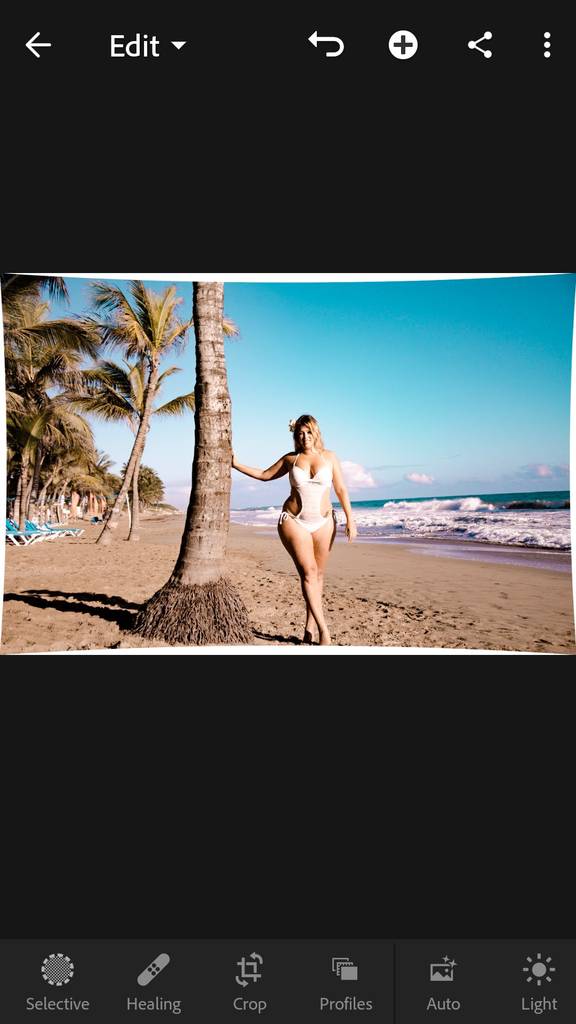
Depending on whether you selected Geometry (it slightly distorts your photo), you might need to slightly crop your picture afterwards.

Finally, you can adjust the horizon and crop it to a square format if necessary – there you go! Photo is ready for Instagram!

Tip: Sometimes you can slightly adopt the “Exposure” to make the preset fit your light situation even better. If it doesn’t seem to work at all, try another preset.

Read: Why you need a preset pack to easily edit the perfect Instagram picture

Create "real" presets in the Lightroom mobile app (The new way!)

So now let’s get to the second option on how to use mobile Lightroom presets on the Adobe Lightroom app. This option is fairly new and was earlier only restricted to paying customers of the desktop version!

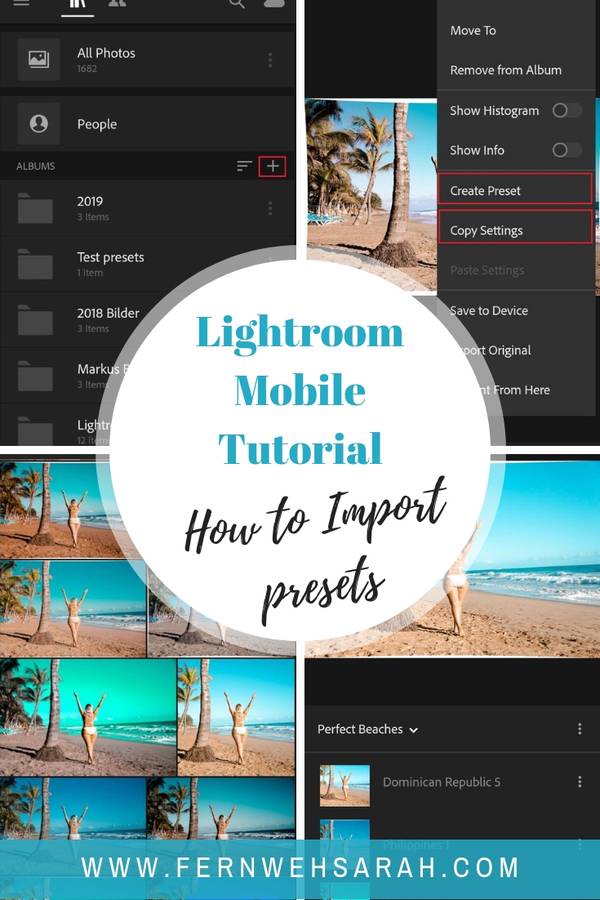
You can now actually create “real” presets from those mobile Lightroom presets – making it much easier to try multiple presets without having to “Copy and Paste” all the time!

In order to create those “real” presets, you need to do the following:

  1. Open the downloaded mobile Lightroom preset
  2. Click on the three dots in the upper right corner
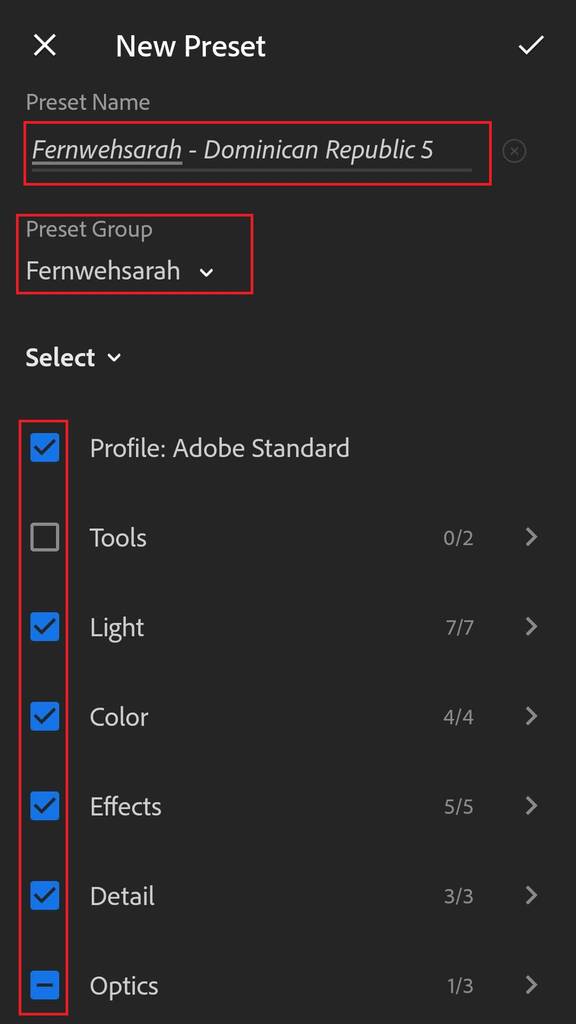
  3. Select “Create preset” this time
  4. Name a new preset group (e.g. “Fernwehsarah” or “Perfect beaches”)
  5. Name the preset itself (e.g. “Dominican Republic 5” or “Perfect Beaches 1”)
  6. Tick the boxes (Tick Geometry as well, leave “Tools” unchecked)
  7. That’s it! Repeat the process for EACH preset you downloaded!

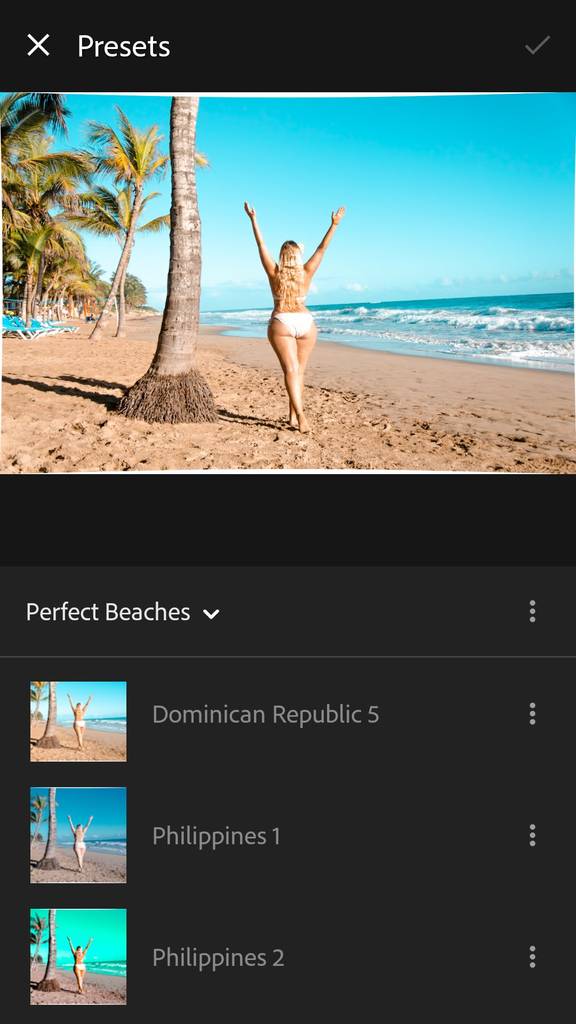
In order to use the new presets, you need to go to presets (swipe right room “Lights” – there is more options!). Then you can select your preset folder and simply try all of the different presets you put in the folder with one click (“No copy and paste” anymore!!!)

How Did you like this post?

How did you like this blog post? Did it help you or do you still have any questions? Let me know in the comments below!

And if you have not yet subscribed to my newsletter – how about doing this now? 

I promise that I won’t spam you – but you will always be the first to know about my next destination guides or Lightroom and Instagram tipps! 

Plus, you will get access to my exclusive and free member’s area! That’s where I share lots of invaluable additional content with you – like my hashtag list for Instagram AND some free Lightroom presets for Instagram!

2 Comments

Leave A Comment

Your email address will not be published. Required fields are marked *

About Us

This post was written by Sarah, the author behind "Fernwehsarah - A guide to travel the world". Sarah is a German Travel Blogger and Instagram Influencer. She calls herself a "Travel-a-Holic" and shares travel advice and destination tips on her website as well as daily travel pictures on her Instagram profile. Her goal is to motivate people to travel more and be confident in their skills and bodies. Sarah has been to over 50 countries and worked with various brands from the travel, fashion and lifestyle industry.

Further reads for you